

Lab 01Draw your first class diagram
A class diagram of an academic research domain in the Web Modeling Editor, checked, turned into Python classes and backed up as a JSON file.
- Time
- 40 min
- Level
- Beginner
- Runs with
- Browser
- Do first
- Nothing
You'll learn to
- Create a project in the BESSER Web Modeling Editor
- Add classes with typed attributes
- Connect classes with associations, a composition and generalizations
- Define an enumeration and use it as an attribute type
- Check a model with Quality Check and generate Python code from it
- Back up a project as a JSON file and know where projects are stored
You'll need
- A modern browser (Chrome, Edge, Firefox or Safari)
- No account and no installation
Files for this lab
In this lab you model a small academic research domain. Researchers write papers, papers are presented at research events, and an event is either a conference or a workshop. You draw it as a UML class diagram in the BESSER Web Modeling Editor, let the editor check it, and generate Python code from it.
You need no UML background. Each step introduces one concept: a class, an attribute, an association, a composition, a generalization and an enumeration. The same model comes back in the next labs, where you build it in Python and add behavior to it.
Open the editor and create a project
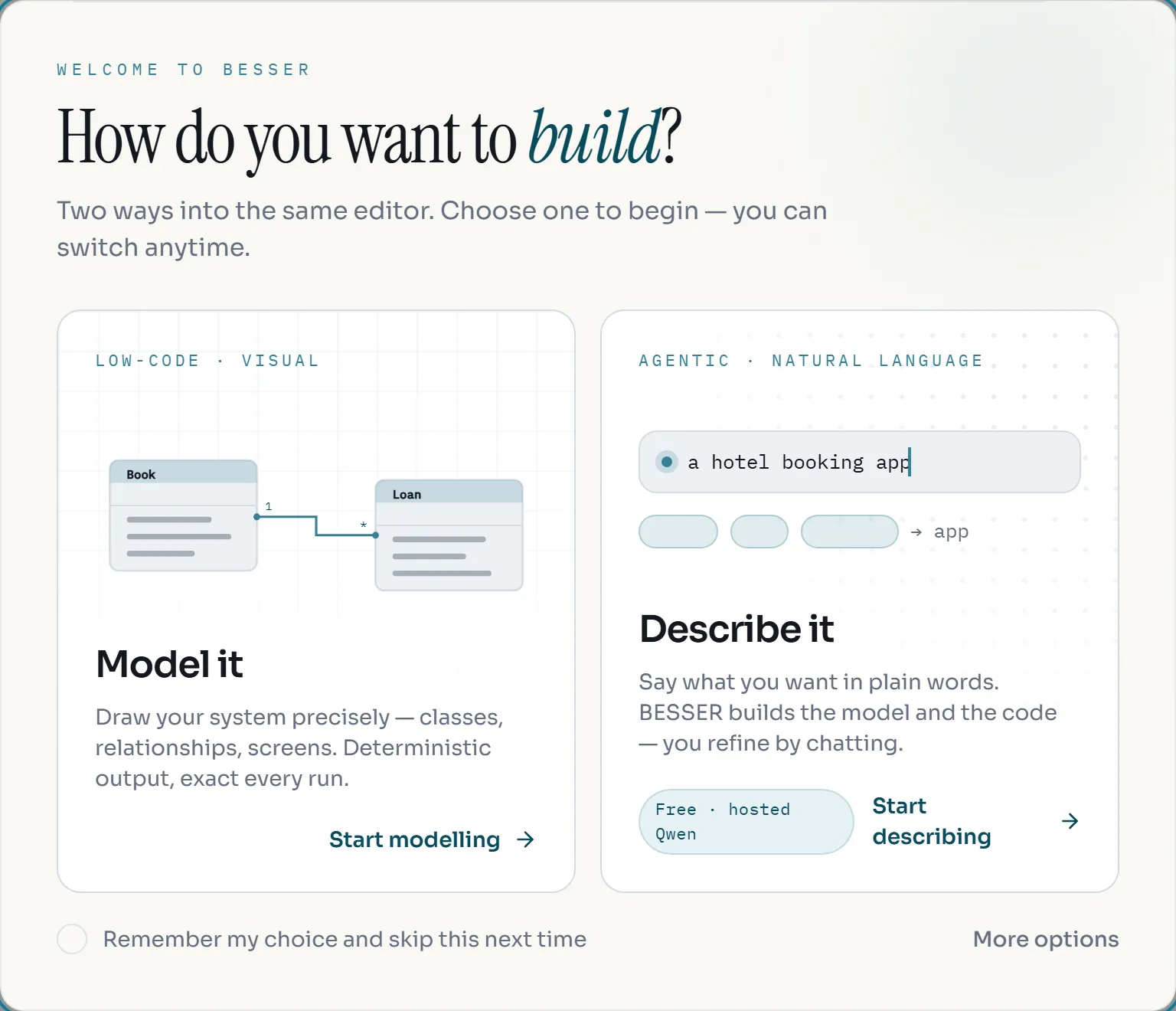
- Open https://editor.besser-pearl.org. On a first visit the editor asks how you want to build.
- Under Model it, click Start modelling. The other card, Describe it, opens the AI assistant instead; you use it in a later lab.
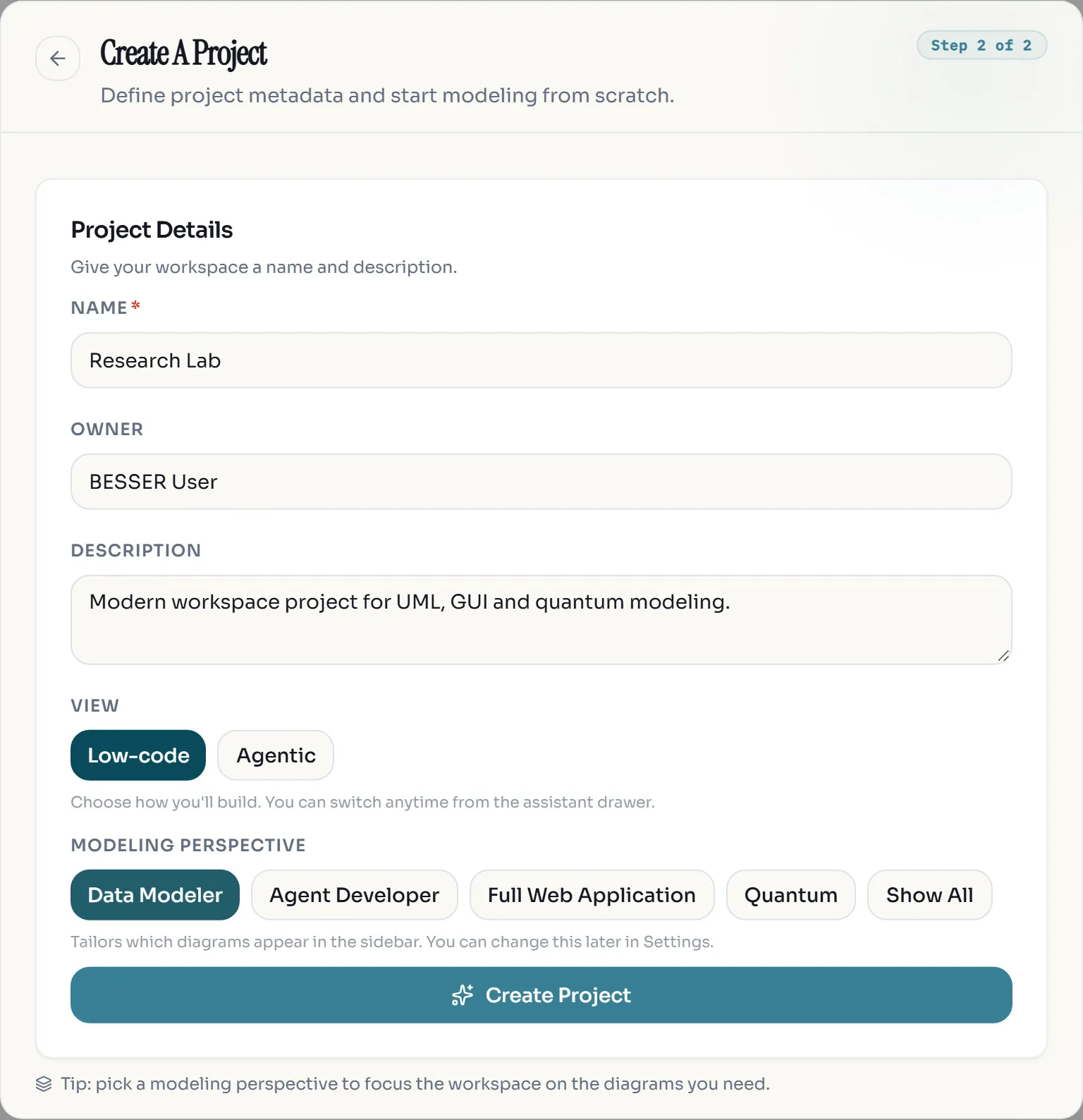
- The Create A Project form opens. Type
Research Labas Name. Leave Owner and Description as they are. - Under View, keep Low-code. Under Modeling perspective, choose Data Modeler. This perspective shows only the class and object diagrams, which is all you need here.
- Click Create Project.
Add classes with typed attributes
A class describes a kind of thing in the domain. Its attributes are the data every instance of the class holds, each with a type such as str (text), int (whole number), bool (true or false) or date.
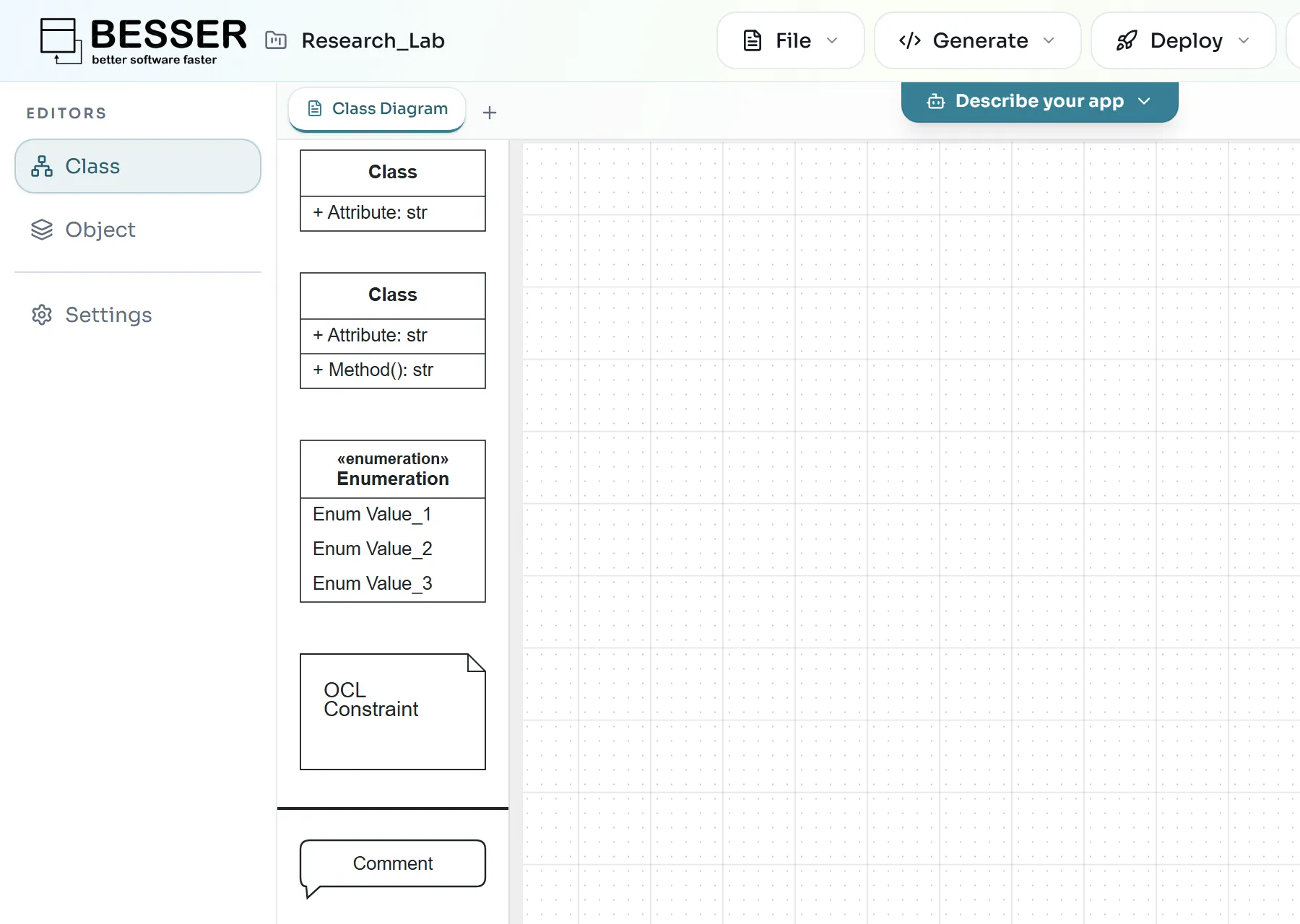
- Drag the first palette element, the Class box with one attribute, onto the canvas.
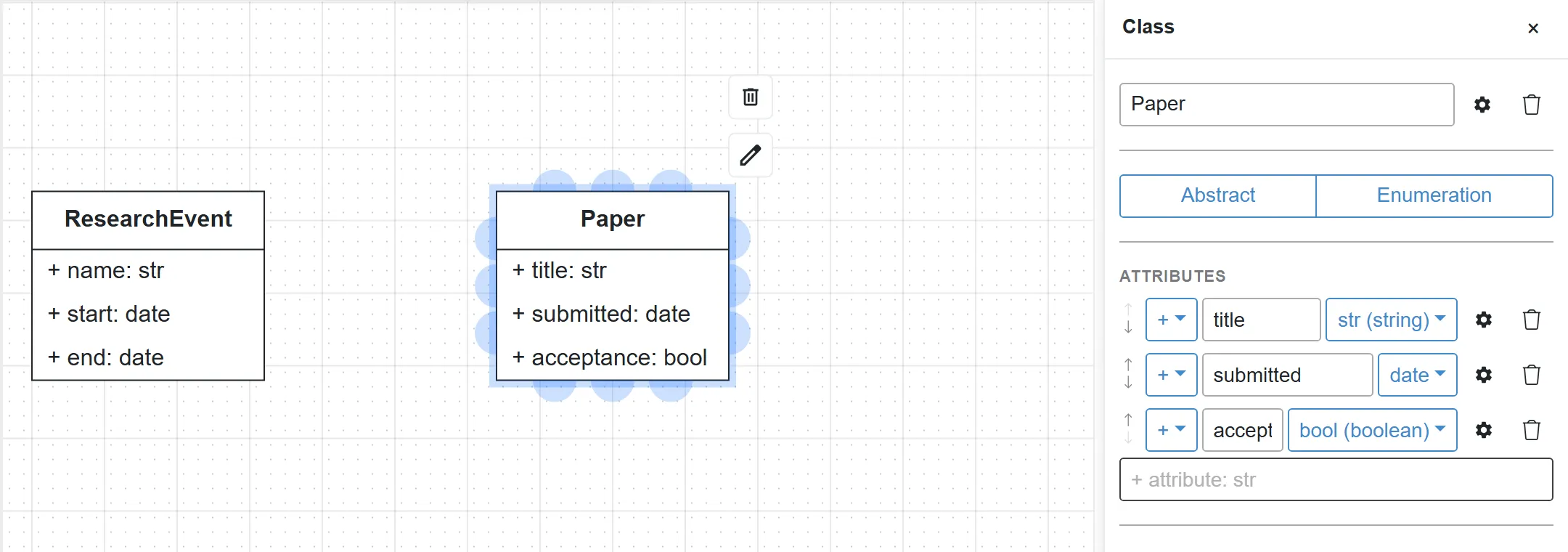
- Double-click the new class. A panel opens on the right.
- In the name field at the top of the panel, replace
ClasswithPaper. - Under Attributes, the class already has one attribute called
Attribute. Rename it totitle. Its type stays str (string). - Click the empty field below it (it shows
+ attribute: str), typesubmitted: dateand press Enter. Then typeacceptance: booland press Enter. The text after the colon becomes the attribute type. - Close the panel with its × button or by clicking an empty spot on the canvas.
Repeat this for two more classes, placed so there is room between them:
| Class | Attributes |
|---|---|
ResearchEvent | name: str, start: date, end: date |
Researcher | name: str, institution: str |
You can also change a type afterwards with the type dropdown in the attribute row, for example to int (integer) or date.
Connect papers and researchers with an association
An association says that instances of two classes are related. Here, a paper has one or more authors, and a researcher can write any number of papers. Those numbers are the multiplicities of the two ends.
- Click
Paperonce to select it. Blue connection points appear around it. - Press on a connection point on the bottom edge of
Paperand drag toResearcher. Release overResearcher. A line appears. - Double-click the line. The Association panel opens.
- Set Name to
authorship. - The panel has one section per end. In the Paper section, set Multiplicity to
*and Role topapers. In the Researcher section, set Multiplicity to1..*and Role toauthors.
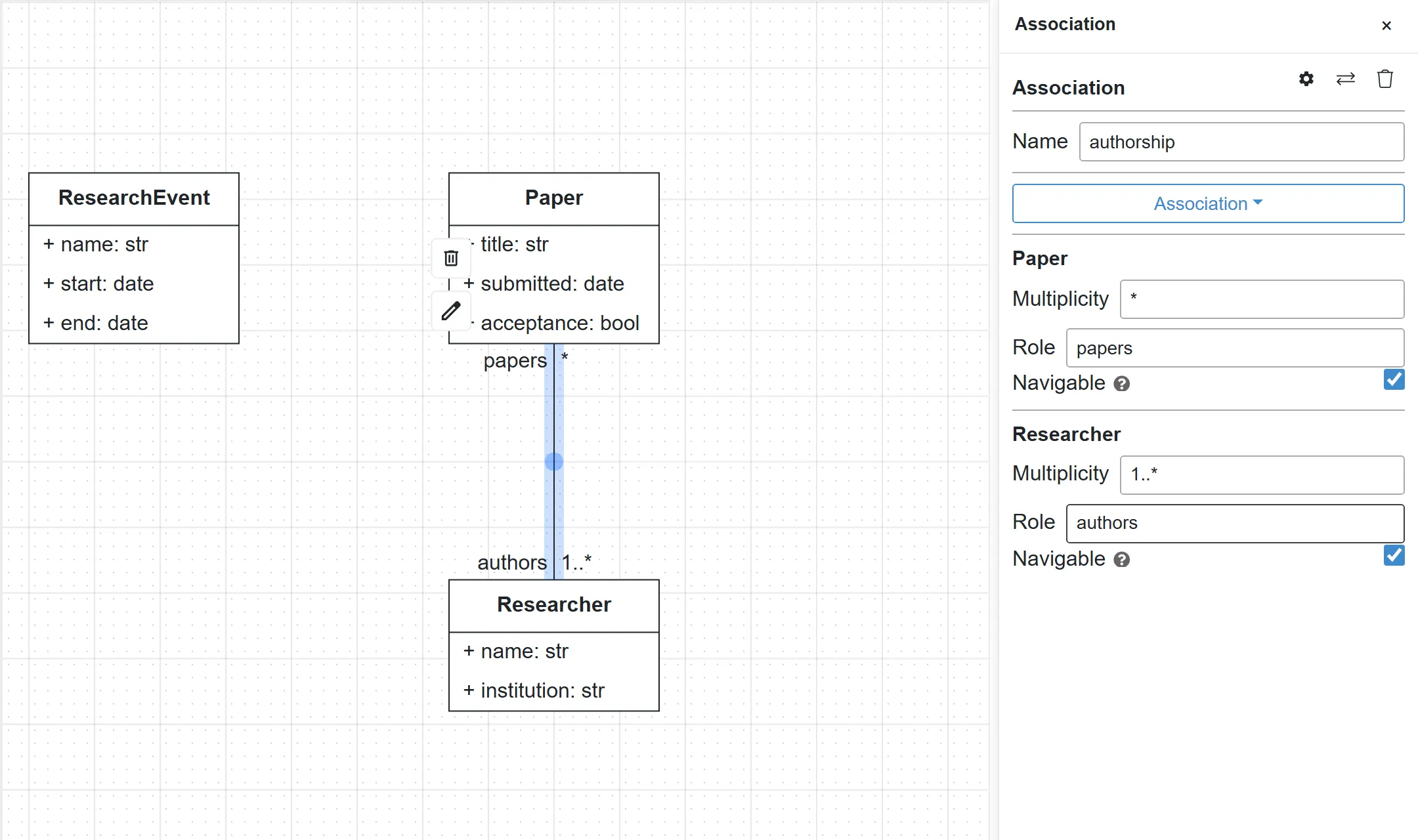
Multiplicities are written as min..max: 1 means exactly one, 0..1 at most one, * any number, and 1..* at least one.
Make events own their papers with a composition
A composition is a strong association: the part cannot exist without its whole. In this domain a paper belongs to exactly one event, and deleting the event deletes its papers.
- Select
Paper, then drag from a connection point on its left edge toResearchEvent. - Double-click the new line. Set Name to
presented_at. - In the Paper section, set Multiplicity to
*and Role topapers. In the ResearchEvent section, set Multiplicity to1and Role toevent. - Click the dropdown that shows Association and choose Composition.
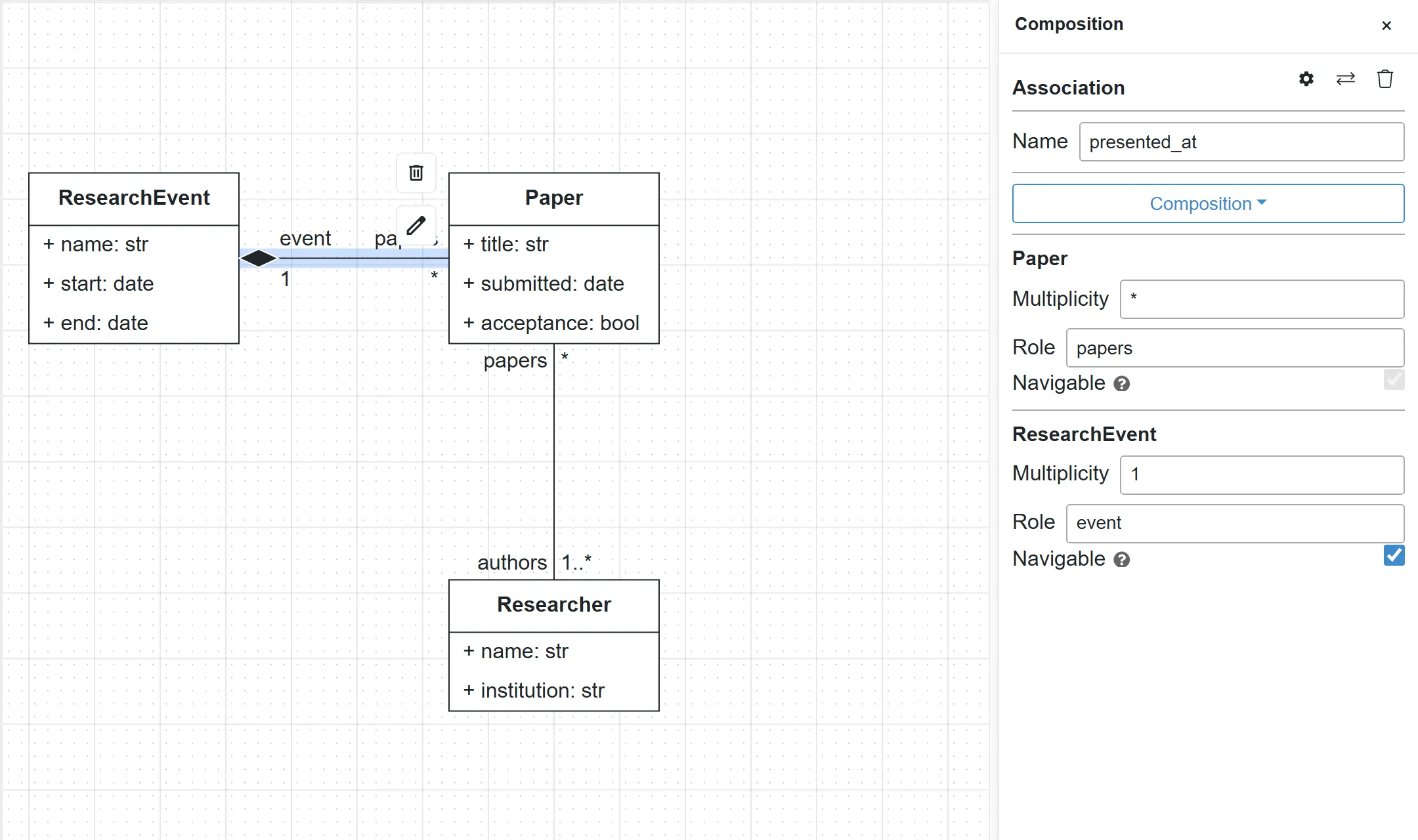
Add Conference and Workshop as kinds of ResearchEvent
A generalization says that one class is a special kind of another. A Conference is a ResearchEvent, so it inherits name, start and end and adds what is specific to it.
- Add a class
Conferencewith the attributeacronym: str, and a classWorkshopwithtopic: str. Place both belowResearchEvent. - Select
Conferenceand drag from a connection point on its top edge toResearchEvent. - Double-click the line and change the dropdown from Association to Generalization. The panel title changes to Generalization and the name and multiplicity fields disappear.
- Do the same from
WorkshoptoResearchEvent.
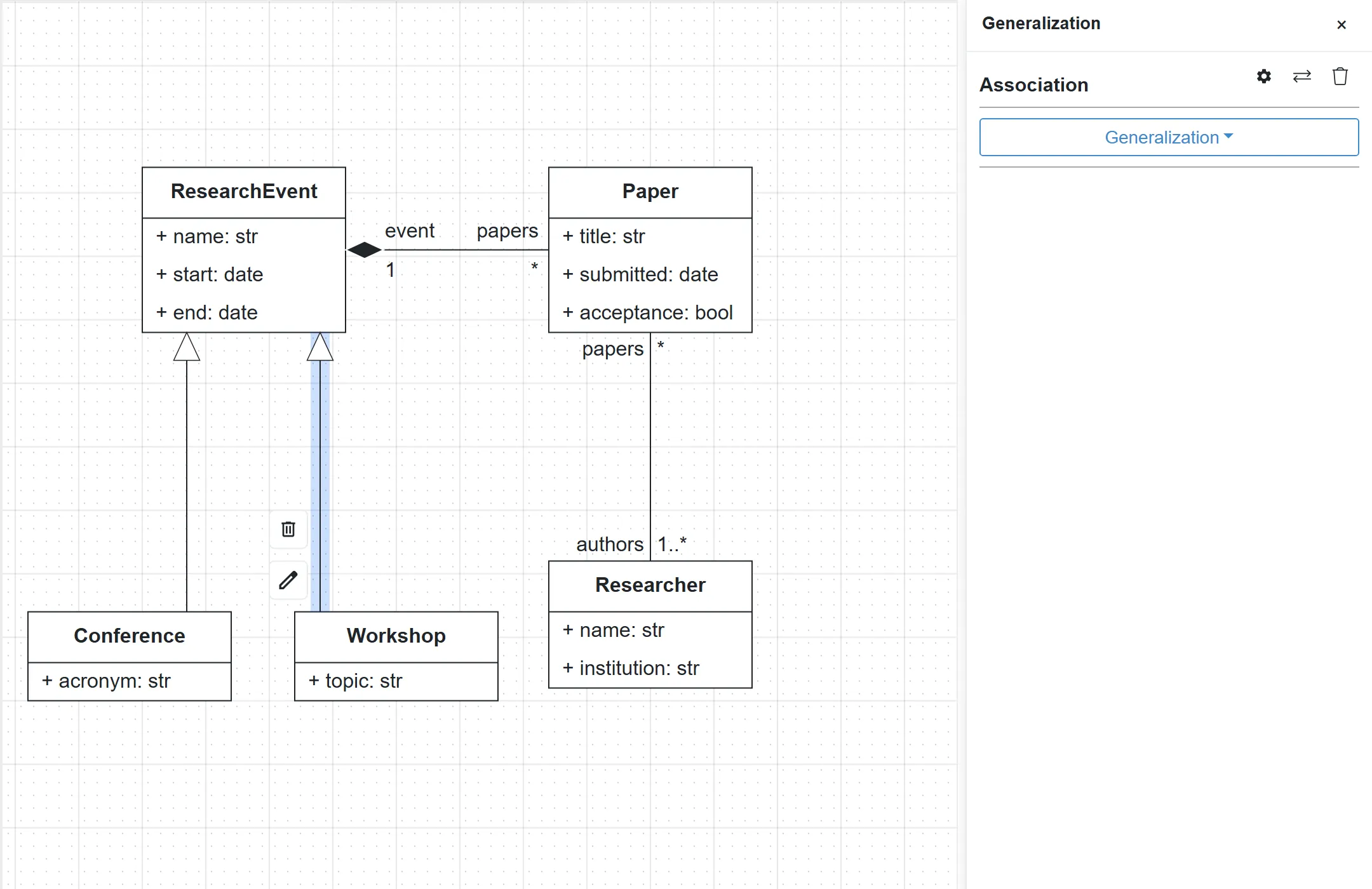
Add an enumeration for the event mode
An enumeration is a type with a fixed list of values, called literals. An event takes place in person, online or both.
- Drag the Enumeration element from the palette onto the canvas and double-click it.
- Rename it to
EventMode. Under Literals, renameEnum Value_1,Enum Value_2andEnum Value_3toin_person,onlineandhybrid.
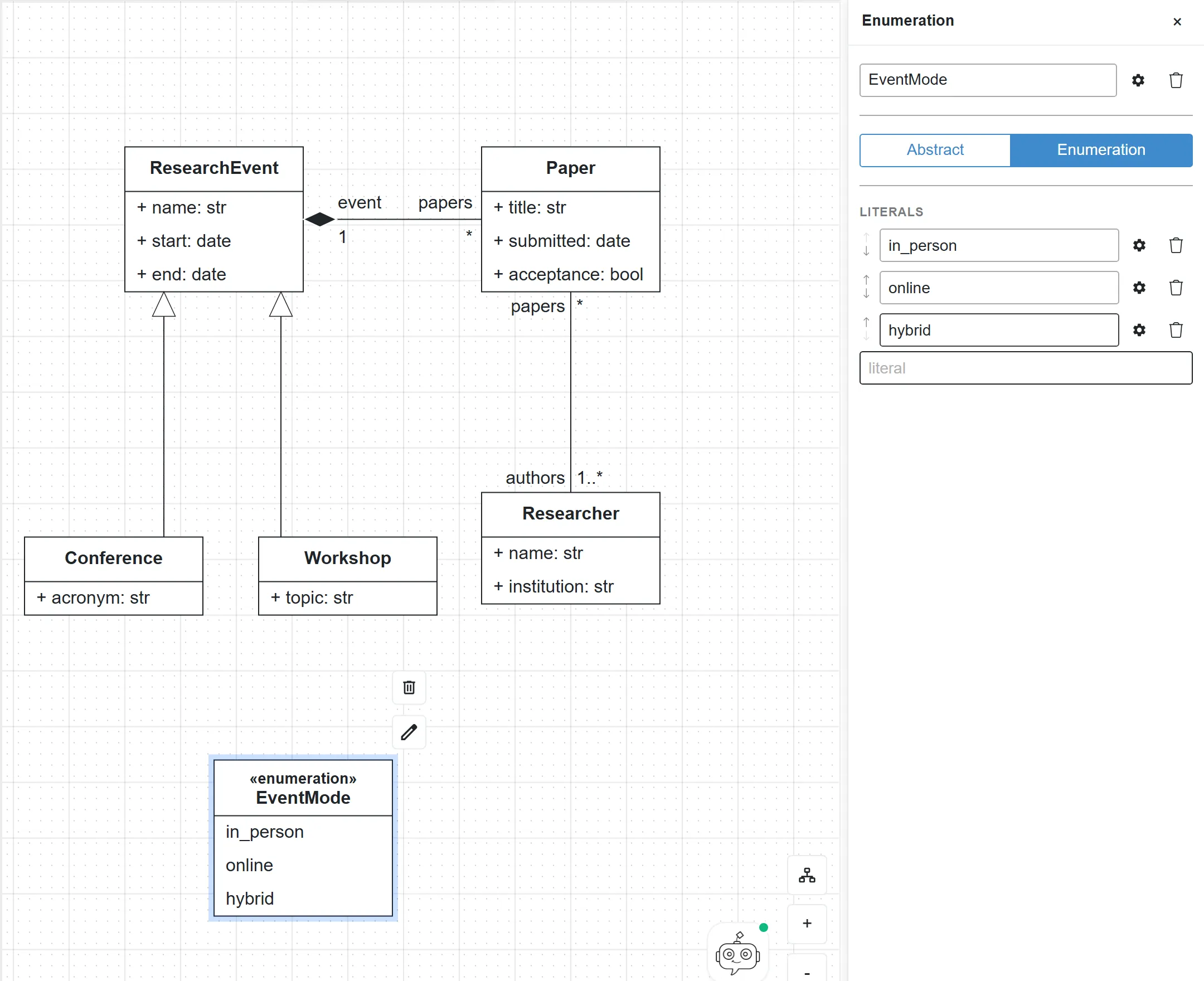
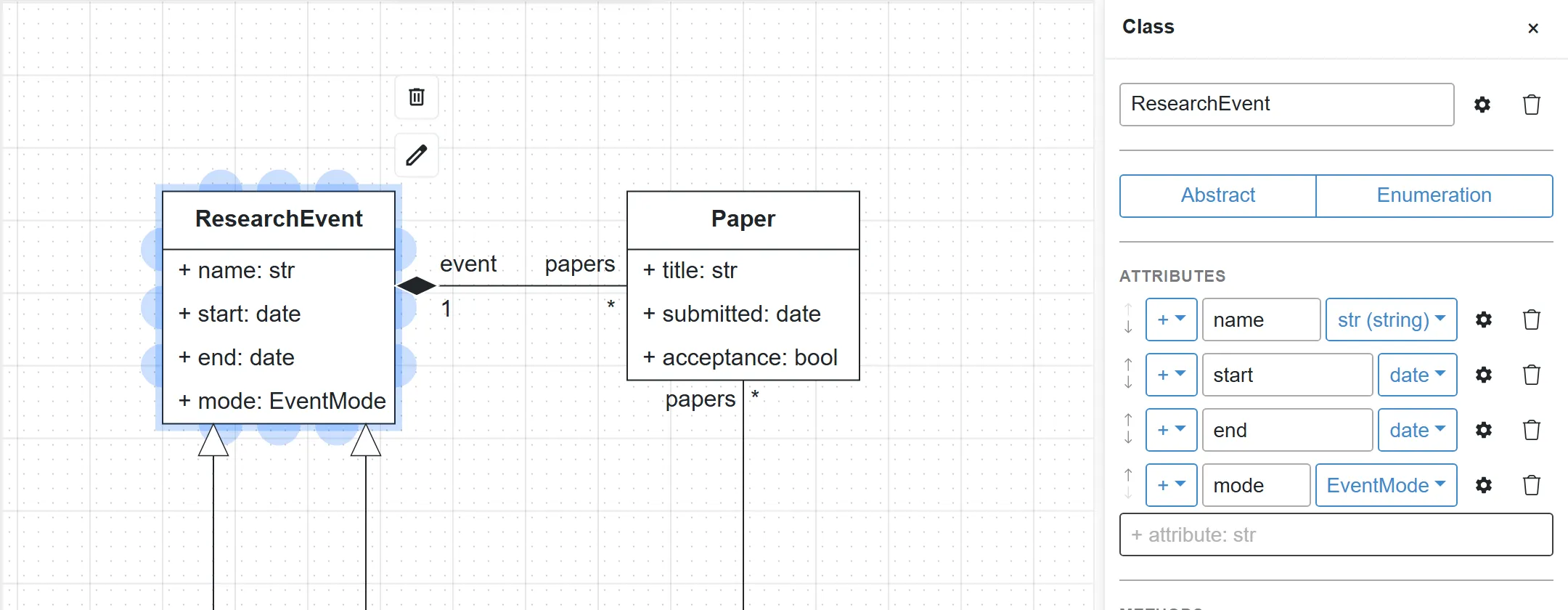
- Double-click
ResearchEvent, typemode: EventModein the+ attribute: strfield and press Enter. The enumeration is now available as a type, next to the built-in ones.
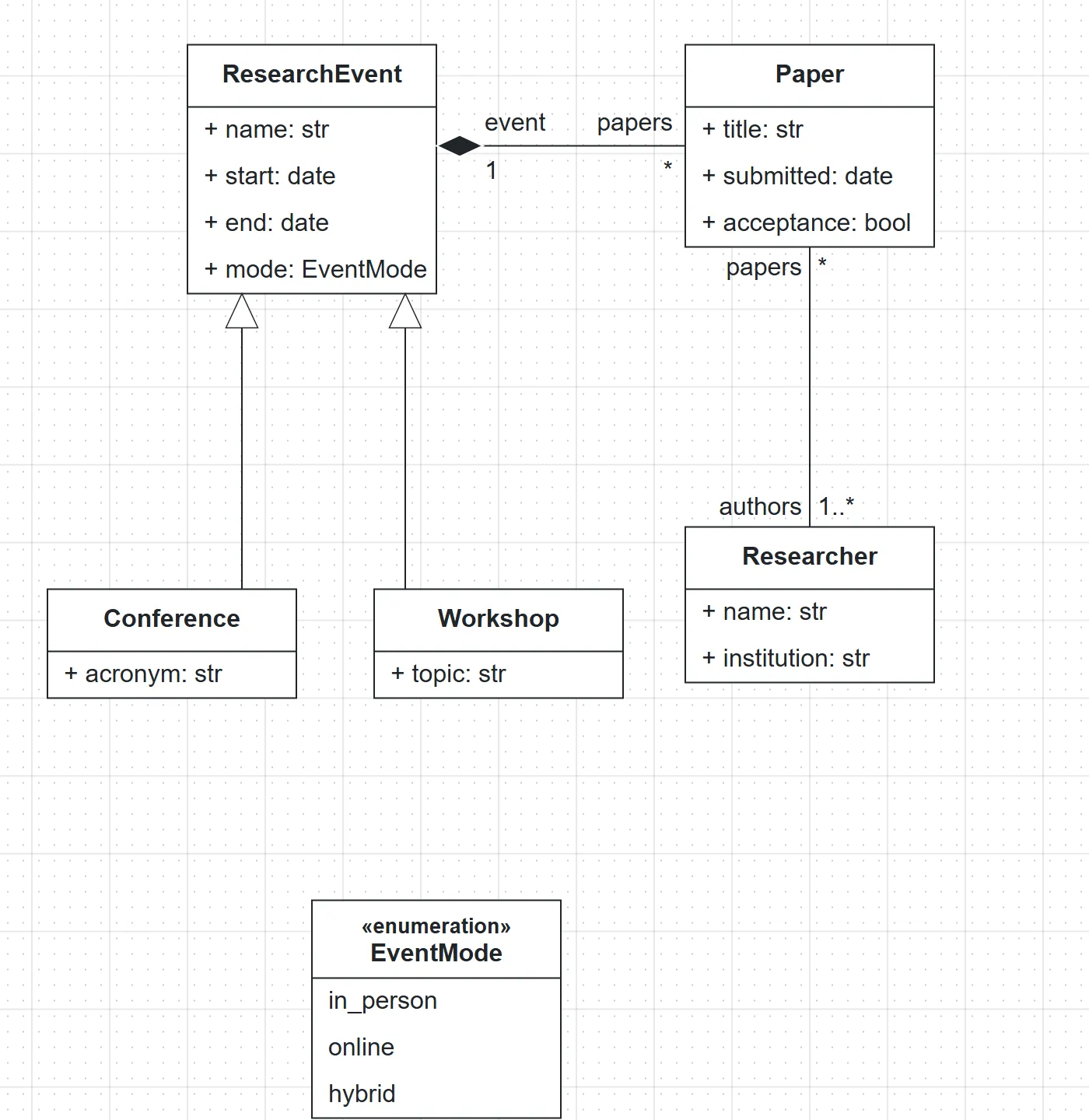
Check the model and generate Python classes
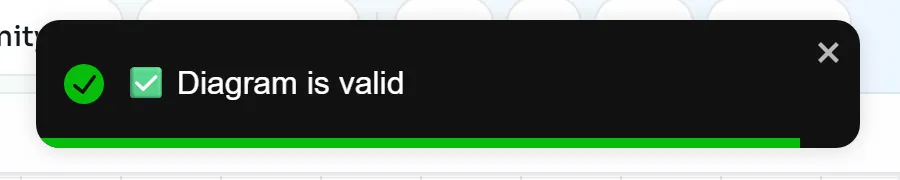
- Click Quality Check in the top bar (the round button with a check mark, left of the theme toggle). The editor converts the diagram to a B-UML model and validates it.
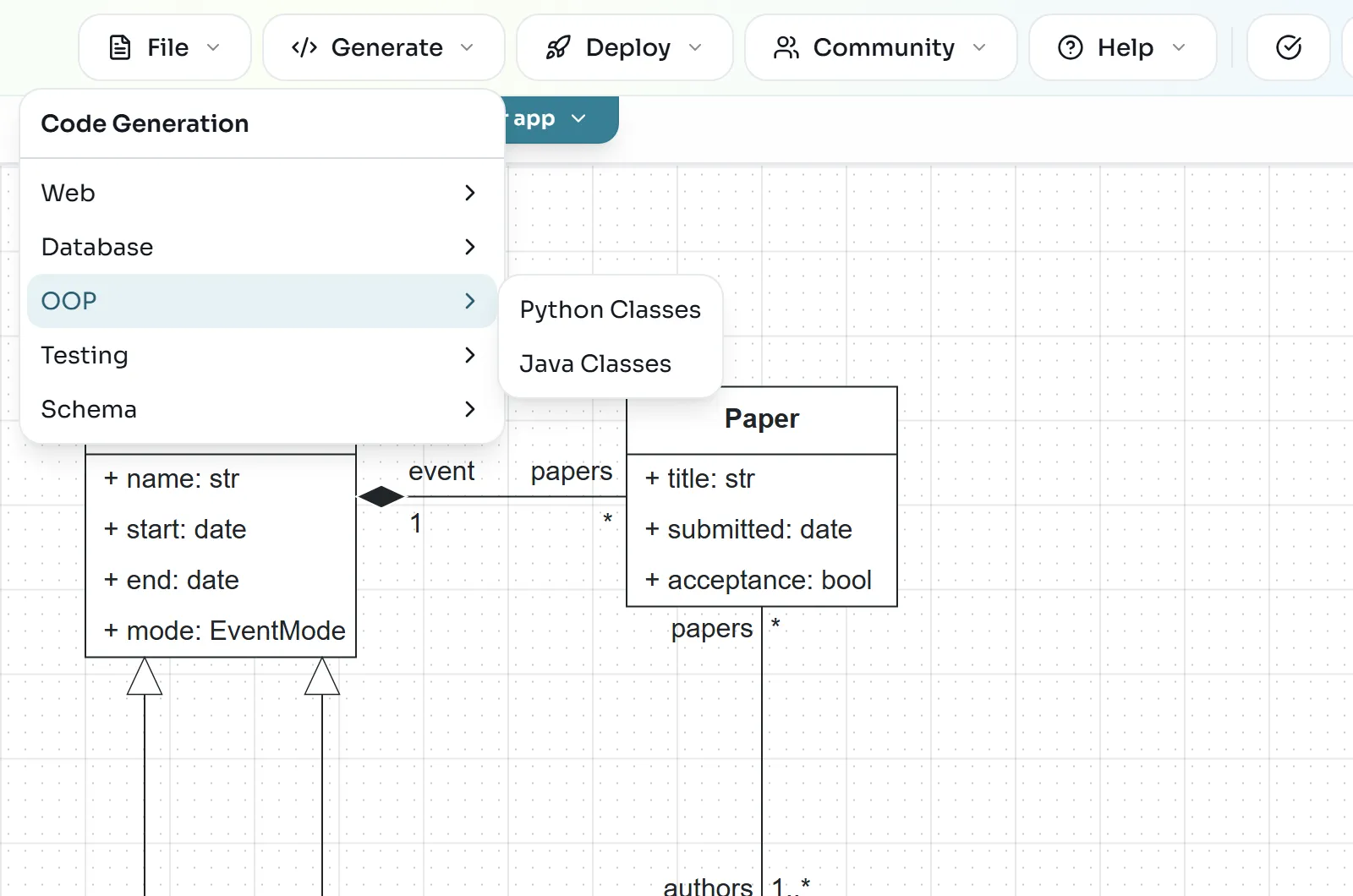
- Open Generate > OOP > Python Classes. The editor downloads a file called
classes.py. No account or API key is needed.
- Open
classes.pyin any editor. Each class became a Python class with typed constructor parameters, the generalization became inheritance, and each association end became a property that keeps both sides in sync:
class EventMode(Enum):
    in_person = "in_person"
    online = "online"
    hybrid = "hybrid"

class Conference(ResearchEvent):

    def __init__(self, name: str, start: date, end: date, mode: EventMode, acronym: str, papers: set["Paper"] = None):
        super().__init__(name, start, end, mode, papers)
If you have Python 3 installed, you can try the classes. Save this next to classes.py as try_classes.py and run python try_classes.py:
from datetime import date
from classes import Conference, EventMode, Paper, Researcher

models = Conference(name="MODELS 2026", start=date(2026, 10, 4), end=date(2026, 10, 9),
                    mode=EventMode.in_person, acronym="MODELS")
alice = Researcher(name="Alice", institution="LIST")
paper = Paper(title="Low-code for research software", submitted=date(2026, 4, 1),
              acceptance=True, authors={alice}, event=models)

print(paper.event.acronym, paper.event.mode)
print([p.title for p in alice.papers])
print([p.title for p in models.papers])
MODELS EventMode.in_person
['Low-code for research software']
['Low-code for research software']Setting the paper’s authors and event also filled alice.papers and models.papers: the generated code keeps both ends of each association consistent.
Back up the project as a JSON file
Because the project lives only in this browser, export it to a file you keep.
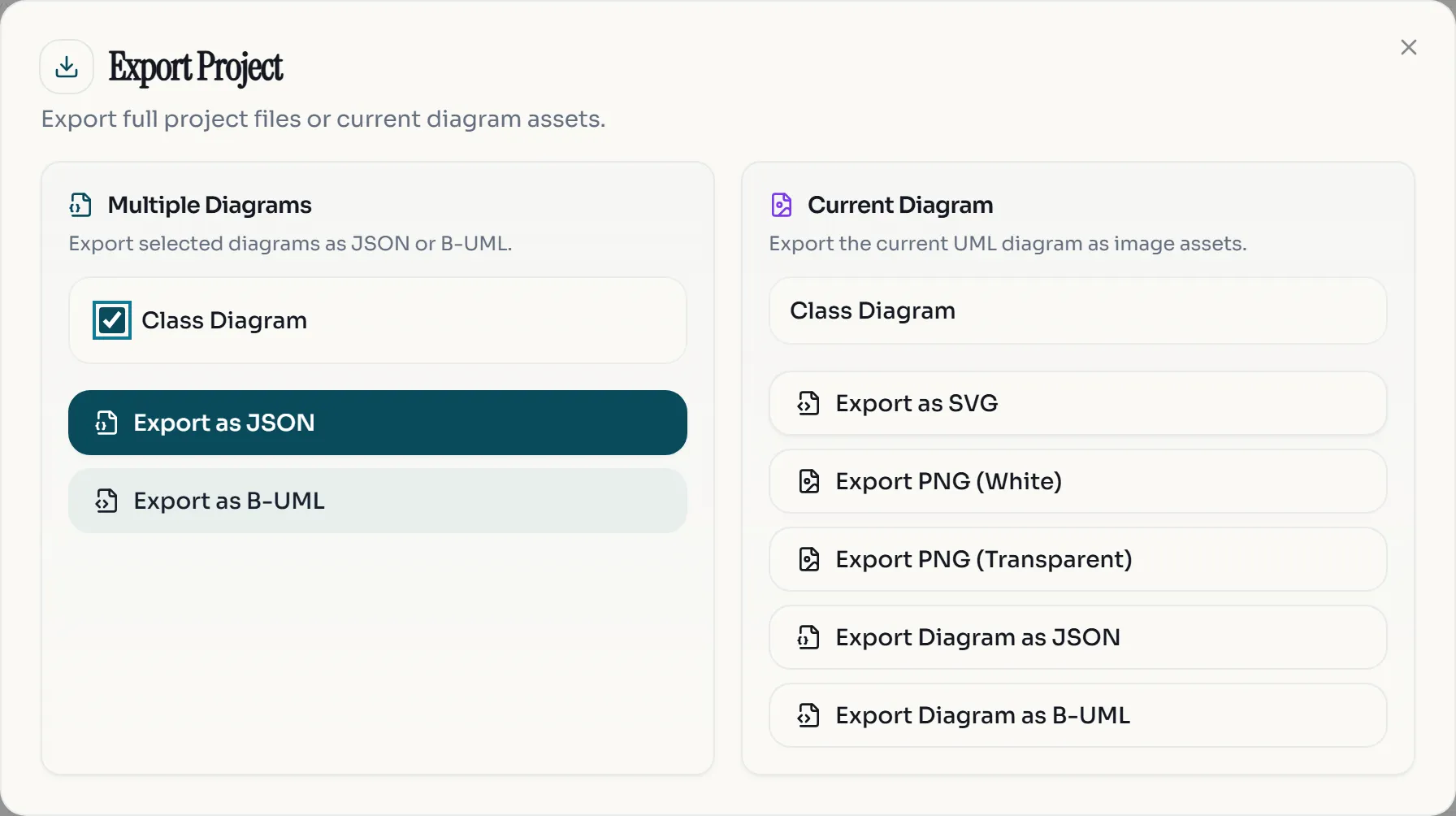
- Open File > Export Project. The Export Project dialog opens.
- Under Multiple Diagrams, keep Class Diagram ticked and click Export as JSON. The browser downloads
Research_Lab.json.
To restore the backup, in this or another browser, open File > Import > Project file (.json / .py) and select the file. Importing always creates a new project; it does not overwrite the open one.
Exercise: add reviews with scores
Show a solution
Score needs two associations: one to Paper (a paper has * scores, a score belongs to 1 paper; a composition fits, since a score has no meaning without its paper) and one to Researcher (multiplicity 1 on the researcher end, with the role reviewer). The value can be an int for now.
Show a solution
Add an enumeration, for example ScoreValue, with those six literals, and change the type of the value attribute from int to ScoreValue in its type dropdown.
For more on the class diagram editor, see the class diagram guide and the projects guide.